Want your caller ID to look clean, stylish, and recognizable in 2026? This guide shows how to change your name on Truecaller, how to fix common update issues, and a curated Top Name Ideas list you can copy and paste instantly.
Your updated name may not appear everywhere instantly.
Some people will still see your saved contact name if they already saved you in their phone.
💥🌸🌿💓 Want more ideas for your name, bio, profile or comments on social media and games? Use these free tools to create stylish names, invisible names, fancy fonts, text art and ready-made comments.
Below are ready-to-use names for your Truecaller ID. They’re written to be global-friendly, readable, and visually stylish. Copy any line and paste it into Truecaller.
If you don’t want to use the Truecaller mobile app, your options are more limited because Truecaller profile edits are mainly designed for in-app updates. Still, these methods can help depending on what you mean by “without app” (no install / no login / no Truecaller settings).
Option 1: Update the name people see from your phone contacts
In many cases, if someone already saved your number, their phone will show their saved contact name (not your Truecaller name).
Ask the person to save you as your preferred name (or update the contact).
This is the fastest “no-app” fix for friends/clients who already have your number.
Option 2: Change your name through your linked account/profile sources
Sometimes the label shown can be influenced by information connected to your number (varies by region/device):
Update your name in your Google account / Apple ID profile (if you use it publicly for caller identity in your ecosystem).
Keep your display name consistent across your main accounts.
Option 3: Use Truecaller’s official support/help flow (web-based when available)
If your name is incorrect and you want a correction without installing the app, look for Truecaller support options that allow requests via a browser (availability depends on country and policy). Use only official support channels shown by Truecaller.
Important note (so you don’t waste time)
If your goal is to edit your Truecaller profile name globally, the most reliable method is still inside the Truecaller app.
“Without app” methods usually affect only specific viewers (their contacts) or are limited to support requests and account consistency.
After you edit your profile, the new name may not appear everywhere instantly. In most cases, it updates gradually as Truecaller syncs and refreshes its database.
If you still see the old name, try reopening the app, checking your connection, and keeping the name simple (no heavy symbols) until the update is fully applied.
How to Change the Name in Truecaller
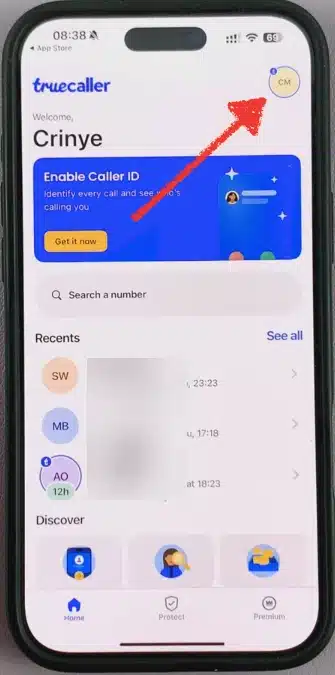
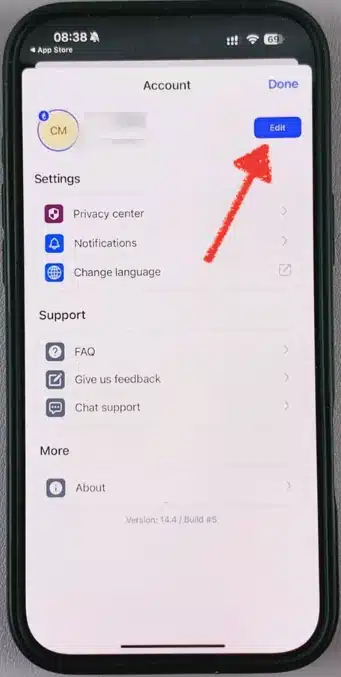
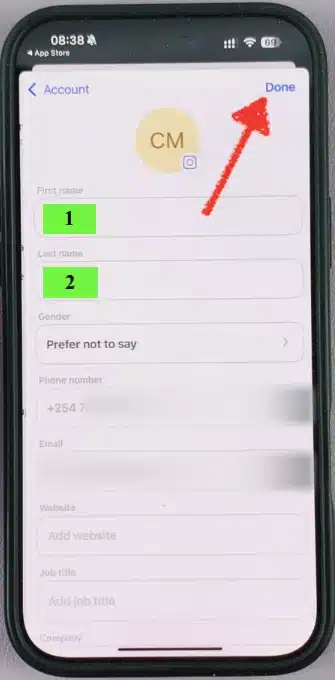
Open Truecaller → Profile → Edit (pencil icon) → update your Name → Save.
If you’re using a stylish font, paste it directly into the name field and confirm. If the edit option looks different on your version, check Settings → Profile.
Can Someone Change My Name on Truecaller?
Usually, people can’t directly edit your Truecaller profile name unless they have access to your Truecaller account/number. However, Truecaller labels can sometimes be influenced by how others saved your number in their contacts or by community-sourced caller ID data—so different users may see different names for the same number.
Truecaller “On a Call” Symbol
Truecaller may show an “on a call”/busy indicator in some situations depending on your device, permissions, and network features. The exact symbol and behavior can vary across Android versions, phone brands, and Truecaller updates—so you might see it on one phone but not another.
Truecaller Showing Wrong Name
If Truecaller displays the wrong name for your number, first update your Truecaller profile name and save. If the wrong label still appears, use a clean, simple name (no symbols) and allow time for syncing.
In many cases, the issue is caused by old cached data, a previous profile label, or mismatched account/number settings.