WhatsApp doesn’t have a built-in “Restrict” button like Instagram, but in 2026 you can still limit what someone sees and how much they can bother you – without actually blocking them. The trick is to combine privacy settings, mute options and a few smart habits.
How To Restrict Someone On WhatsApp Without Blocking 2026
When people search “how to restrict someone on WhatsApp without blocking 2026”, they usually want three things:
That person can still message if really needed
But they see less of your info
And they can’t spam you or add you everywhere
You can get very close to a “restricted” effect by doing all of this:
1. Limit what they can see in your profile
Go to:
Settings → Privacy → Last seen and online
Set to My contacts except… and exclude that person, or use Nobody.
Settings → Privacy → Profile photo
Set to My contacts except… and exclude them.
Settings → Privacy → About and Status
Also set to My contacts except… and exclude them.
⛔ Result: They can still chat with you, but they don’t see your last seen, profile photo, about or status like a normal contact would.
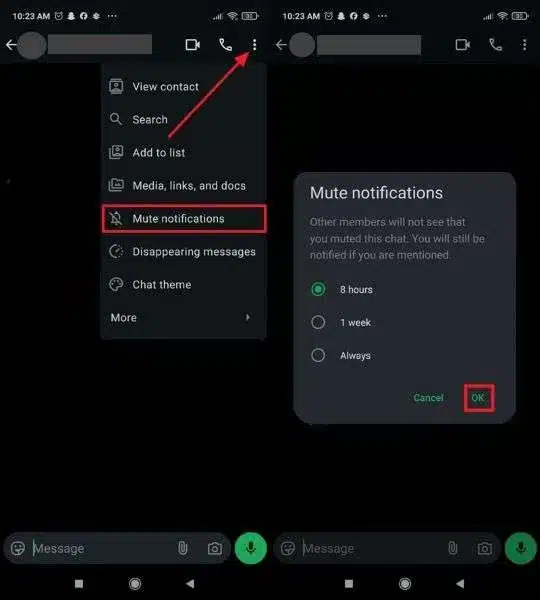
2. Mute their notifications
Open the chat with that person:
Tap their name/number at the top
Choose Mute notifications
Select Always (or at least 1 week)
Mute the Whatsapp Chats
Now you won’t get sound/vibration every time they message.
3. Archive the chat to push it out of sight
In your chat list:
Long-press (Android) or swipe left → Archive (iPhone)
In WhatsApp settings, enable “Keep chats archived” (if available)
This hides the chat from the main list, so they feel “far away” from your daily conversations.
After these steps, you’ve basically:
Restricted what they see
Restricted how much they bother you
But not blocked them – the chat still works if you ever need it.
If you also want to play with invisible names and blank profile text, you can follow this detailed guide on how to hide name in WhatsApp.
Whatsapp invisible name
How To Hide My Name On WhatsApp From Someone Without Blocking ?
You cannot set a different name for each person, but you can make your global WhatsApp name look blank using special invisible characters. Combined with privacy settings, this is the closest way to “hide my name on WhatsApp from someone without blocking”.
Step-by-step: create an invisible WhatsApp name
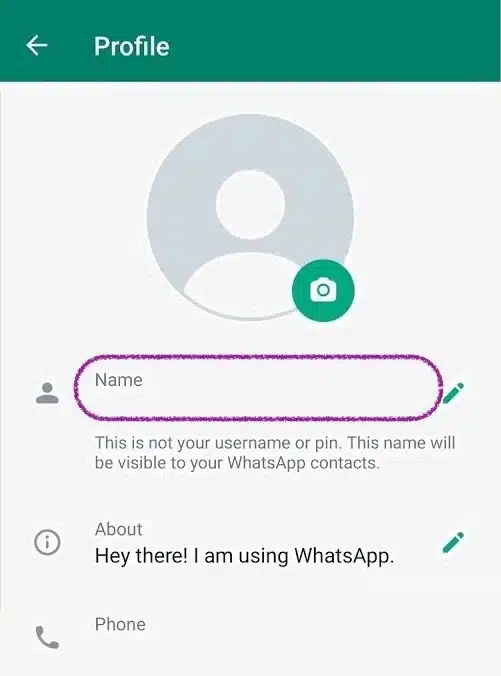
Open WhatsApp → Settings.
Tap your profile (your name/photo at the top).
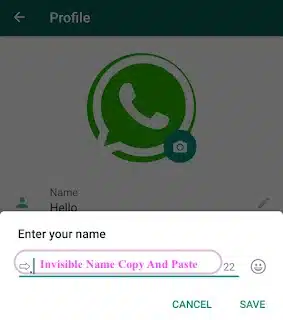
Tap your Name field.
Delete your current name completely.
Instead of typing letters or a normal space, use a blank/invisible character:
How To Block Someone Without Blocking Them On WhatsApp iPhone?
On iPhone, there’s no way to truly block someone without blocking them – but you can limit them so much that they feel almost “blocked” while technically still allowed to message.
iPhone privacy steps
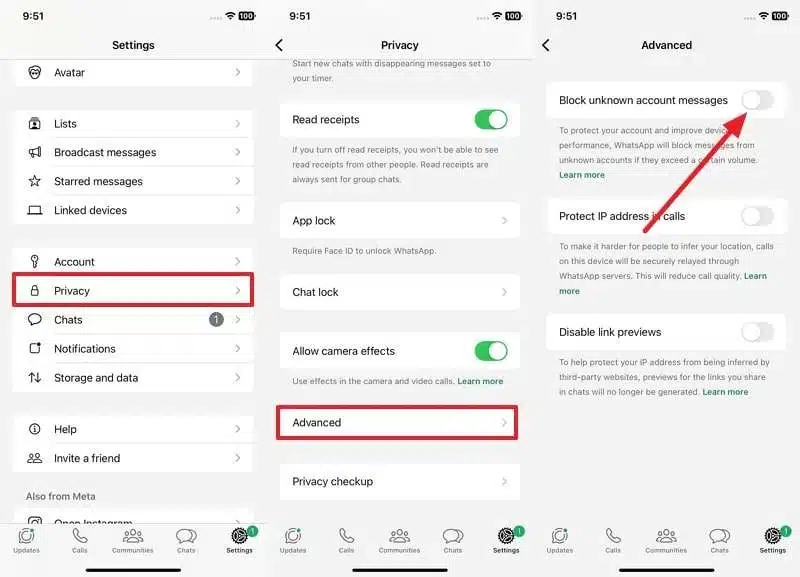
Open WhatsApp → Settings → Account → Privacy.
For Last Seen & Online, choose:
My Contacts Except… → select that person, or
Nobody if you want full stealth.
For Profile Photo, choose My Contacts Except… and exclude them.
For About and Status, do the same.
Now they:
Can’t see when you were last online
Don’t see your new profile photo
Don’t see your status updates
…but they still technically aren’t blocked.
Restrict someone on whatsapp with blocking iphone
iPhone mute + archive combo
In the chat with that person:
Tap their name at the top.
Turn on Mute → Always.
Go back to the chat list, swipe left → Archive.
This means you:
Don’t get notifications for their messages
Don’t see their chat in your main inbox
Can still open archived chats if you truly need to reply
If you want to test invisible characters or sample texts before pasting them into WhatsApp on iPhone, a simple way is to use a comment copy and paste playground.
Comment Copy and Paste
How To Mute WhatsApp Messages Without Blocking On Android ?
On Android, muting messages without blocking is very easy and is often the best way to “soft block” someone.
Step-by-step: mute a contact or group on Android
Open the chat with the person (or group).
Tap their name / group title at the top.
Tap Mute notifications.
Choose 8 hours, 1 week or Always.
Optionally, turn off Show notifications if the option appears.
Now you won’t get sound, vibration, or banners from that chat.
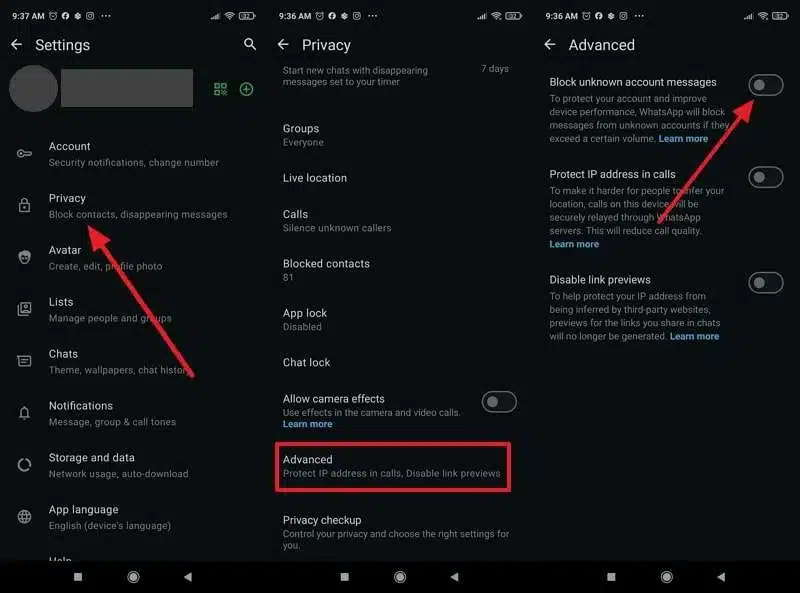
Stop receiving Whatsapp messages from someone with blocking for Android
Keep the chat out of sight
To keep your inbox clean:
In the chat list, long-press the conversation.
Tap the Archive icon.
In WhatsApp settings, enable “Keep chats archived” so it stays hidden even when new messages arrive.
You have effectively:
Muted them long-term
Moved them out of your main inbox
Kept the option to reply when you feel like it
If you’re also experimenting with fun or formatted WhatsApp messages (once you’ve muted the annoying ones), you can take inspiration from this guide on creative spam message WhatsApp styles.
Spam Message Whatsapp
Tips: Stop Receiving Messages From Someone On WhatsApp Without Blocking Them
Realistically, if you never want to see messages from someone again, the cleanest solution is blocking. But if you want something close to that without touching the block button, you can stack these tricks:
1. Mute forever + archive
Mute the chat to Always.
Turn off Show notifications (if available).
Archive the chat and turn on Keep chats archived.
You will technically still receive messages, but:
No sound
No pop-ups
No chat in your main list
You’ll only see them if you manually open the archived folder.
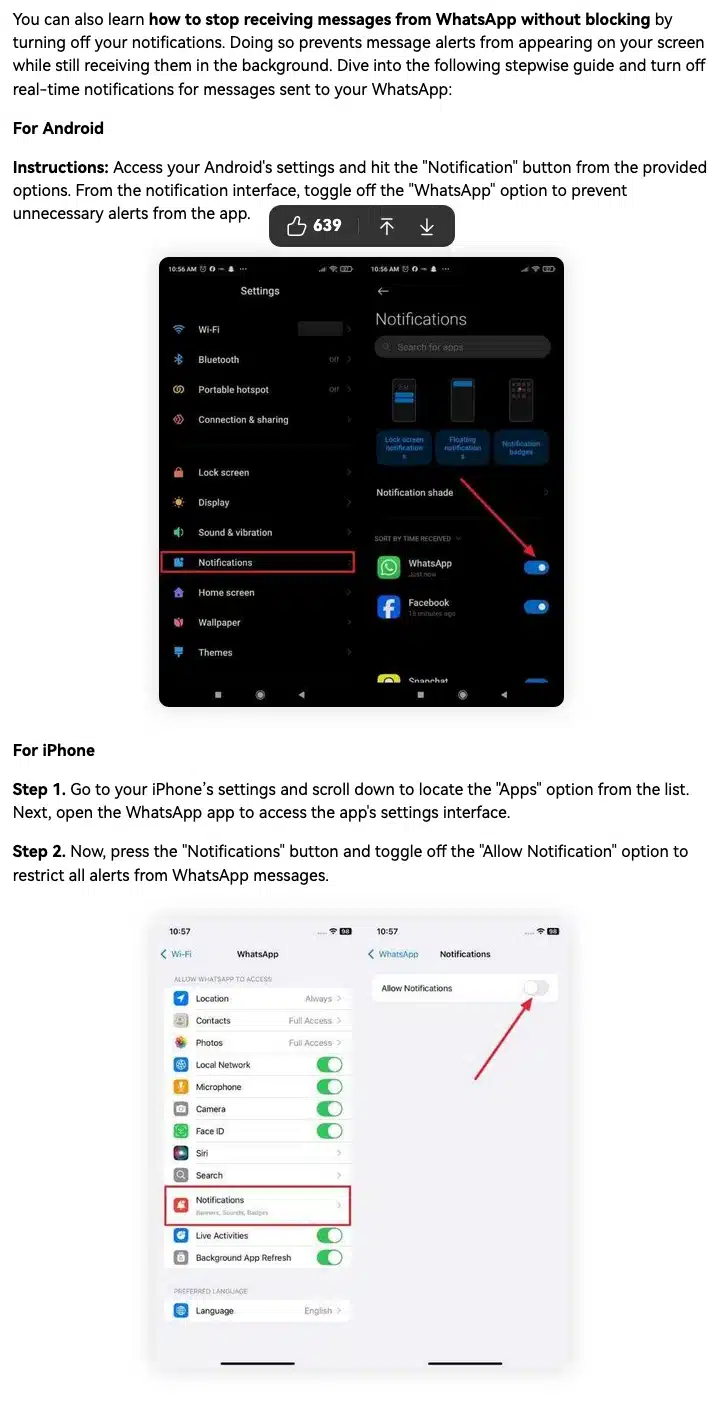
Turn Off WhatsApp Notifications
2. Tighten your privacy
Set Last Seen & Online → Nobody or My contacts except…
Set Profile photo, About, Status → My contacts except… and exclude them
Turn off Read receipts if you don’t want them to see blue ticks
This makes your account appear very “closed” to that person.
In Settings → Privacy → Groups, use My contacts except… and exclude them.
This prevents them from throwing you into random groups where they can keep bothering you.
4. As a last resort: change how you use that number
If someone is extremely persistent and you truly want no contact without using Block, your only real workaround is to:
Stop using that number for WhatsApp and move to a new one, or
Gradually phase out that account and communicate through other apps.
And if you ever want to play with more subtle WhatsApp tricks (like sending a completely blank message once you’re in control of your chats again), you can check this tutorial on how to create an empty message on WhatsApp.