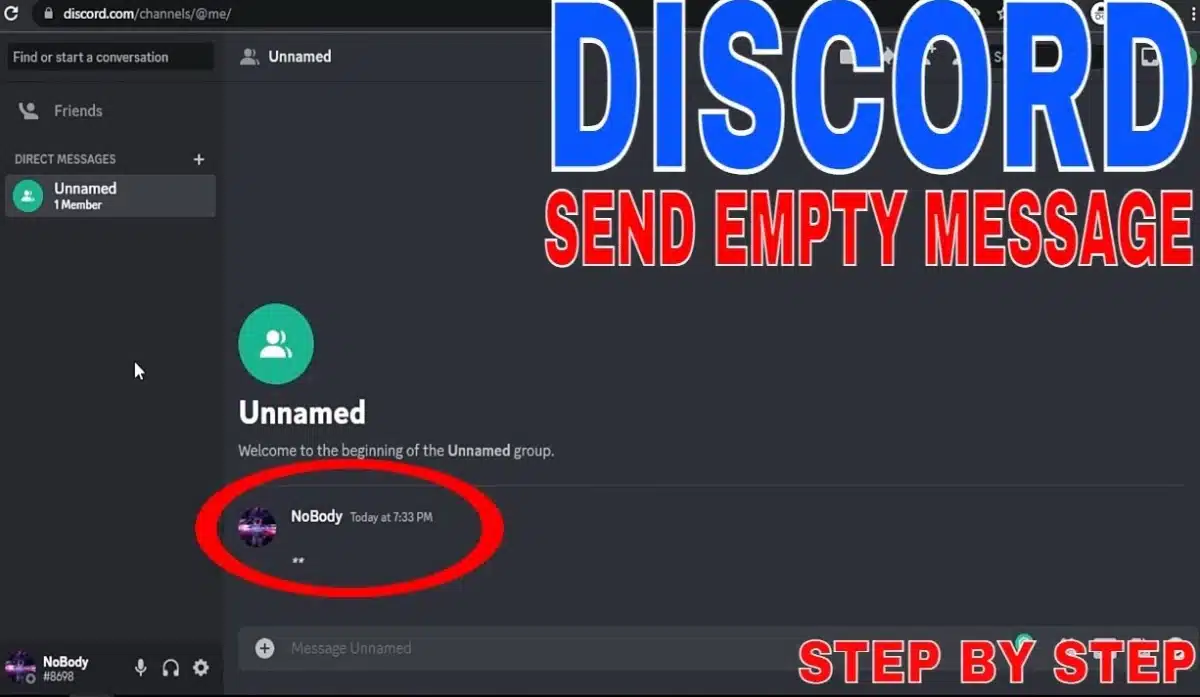
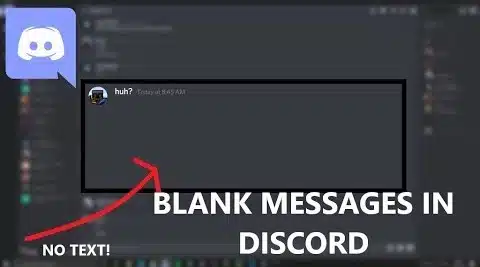
If you want to send a blank (invisible) message on Discord, you’re not alone—many people use it to create spacing, “empty” lines, clean-looking profiles, or simple chat effects.
In this guide, you’ll learn the practical, working ways to send blank text on Discord (desktop + mobile), what to do when it doesn’t work, and a few safe tips to avoid broken boxes (□).
Discord usually blocks truly empty messages (just pressing space won’t send). The easiest method is to copy an invisible character and paste it as your message.
How to send empty message Discord
Use this flow:
Copy a blank message from the section below
Paste it into Discord chat/DM
Press Enter / Send
Important: If Discord still won’t send, jump to “Blank Discord DM Not Working” to fix it.
Discord has a built-in spoiler format that “hides” content until someone taps/clicks it. This is different from a blank message, but it’s great for hidden text effects.
On Desktop / Web:
Type: ||your message||
Example: ||This is hidden||
Send it. People must click to reveal.
Quick tips:
You can hide emojis too: ||😈||
You can hide a whole sentence, but don’t spam huge blocks—Discord chats get messy fast.
Combine with a blank line (invisible message) to create spacing above/below your spoiler.
On Discord mobile (Android/iPhone), spoiler text works the same.
Steps:
Open the channel or DM
Type: ||your hidden text||
Tap Send
The receiver taps the spoiler to reveal
Mobile-friendly examples:
||don’t open this 😅||
||secret code: 123||
If you’re trying to send a blank invisible message on mobile, use the copy/paste method from your “Blank Discord DM Copy And Paste” section (invisible characters) or generate a “long invisible text” using your generator.
If your blank message won’t send in Discord DM or channels, it’s usually one of these reasons:
1) You pasted normal spaces, not invisible characters Regular spaces are treated as empty → Discord blocks it. ✅ Fix: Copy an actual blank character from your ready-to-copy samples or generate one using your tool.
2) The font/character becomes a box (□) on your phone Some invisible characters don’t render well on certain devices. ✅ Fix: Try another blank sample from your list (different Unicode blank). ✅ Tip: Keep a “backup blank” that you know works on your device.
3) You’re using a bot or server setting that filters messages Some servers use moderation bots that delete weird messages or “empty-looking” messages. ✅ Fix: Test the blank message in a private DM first. If it works there but not in a server, it’s probably a filter.
4) Too long invisible text gets blocked Very long invisible messages may fail or appear suspicious. ✅ Fix: Use a shorter blank message, or split it into 2–3 smaller sends.
These tips help you use blank/invisible messages neatly (and avoid breaking your chat layout):
Use blank messages for spacing, not spam: 1–3 blank lines is usually enough.
Save your best-working blanks: Keep 2 versions:
Short blank (for quick spacing)
Long invisible text (for separators or larger gaps)
Test in DM before posting in a server: Servers may have filters.
Avoid rare symbols near your blank text: Mixing too many special characters can turn into boxes (□) on mobile.
If you want “hidden” content, use spoilers instead:||hidden text|| is cleaner than trying to hide words with invisible characters.
That’s it—add your Blank Discord DM Copy And Paste samples and your Blank Text Discord Generator app where noted above, and the article will feel complete and genuinely useful for Discord users.