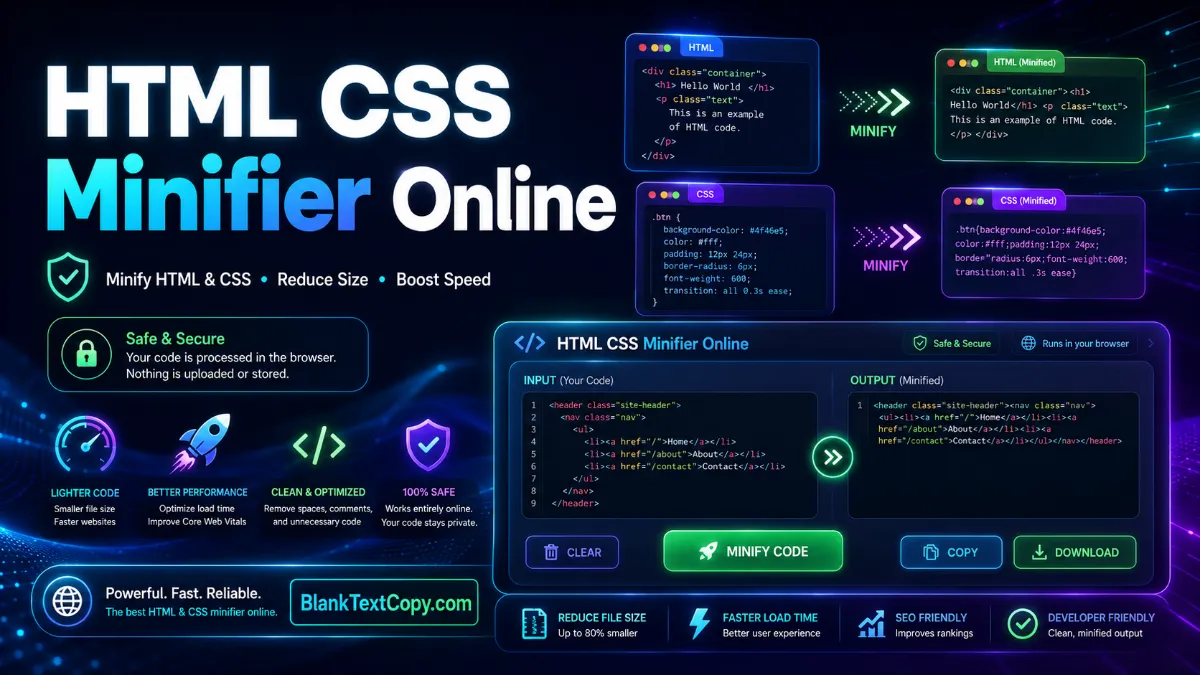
HTML CSS Minifier Online – Safe Code Optimizer helps you compress HTML and CSS code safely without breaking important JavaScript blocks. Paste your full code, clean extra spaces, optimize CSS, copy the output, and use it for websites, tools, templates, landing pages, and online projects.
This tool is designed for creators, bloggers, developers, and website owners who want a simple code optimizer that is fast, clean, and easy to use. It works best for HTML, CSS, and full code blocks that include style and script sections, while JavaScript is preserved by default for safer output.
⚡ Safe Code Optimizer
HTML CSS Minifier
Paste HTML, CSS, or full code. This tool safely minifies HTML/CSS and preserves JavaScript to help avoid broken output.
📥 Input CodeWaiting
📤 Output CodeReady
✅ Copied!
Original0 B
Output0 B
Saved0 B
Reduction0%
⚙️ Advanced Settings
Recommended default: keep Preserve <script> blocks enabled. Experimental JS minify is only for very simple scripts.
⏳ Waiting for JavaScript…
What Is an HTML CSS Minifier?
An HTML CSS minifier is an online tool that reduces unnecessary characters from your code, such as extra spaces, line breaks, tabs, and comments. The goal is to make the code lighter, cleaner, and easier to copy into your website or project.
This tool focuses on safe optimization, which means it compresses HTML and CSS while keeping JavaScript blocks protected by default. That makes it useful when you paste a full HTML block that contains:
HTML layout code
CSS inside <style> tags
Inline CSS
JavaScript inside <script> tags
Website widgets or small web apps
Landing page sections
Custom HTML blocks
Instead of aggressively changing everything, the tool tries to clean only the parts that are safer to optimize.
Many online minifiers are powerful, but some can be too aggressive for small website tools, custom blocks, or embedded code snippets. If JavaScript is compressed incorrectly, buttons, forms, copy features, generators, or interactive widgets may stop working.
This safe optimizer is built for a more practical workflow: minify HTML and CSS first, preserve JavaScript by default, and avoid breaking your code.
Key benefits:
Compress HTML by removing extra spacing and line breaks.
Minify CSS inside style blocks.
Preserve JavaScript blocks to reduce the risk of errors.
Copy optimized output with one click.
Download the result for later use.
Use Output to continue editing the optimized code.
Advanced settings are available only when needed.
This makes the tool useful for everyday website editing, especially when you want a quick cleanup without risking your script logic.
How to Use the HTML CSS Minifier Online
Using the tool is simple. You do not need to install software or create an account. Just paste your code, click the minify button, and copy the optimized result.
Steps:
Step 1: Paste your HTML, CSS, or full code block into the Input Code box.
Step 2: Click Minify Code.
Step 3: Check the optimized result in the Output Code box.
Step 4: Click Copy Output to copy the result.
Step 5: Paste the optimized code into your website, editor, template, or project.
Step 6: Use Download if you want to save the optimized file.
For most users, the default settings are already the best choice. The tool will safely optimize HTML and CSS while preserving JavaScript.
What Kind of Code Can You Paste?
You can paste different types of code into this optimizer. The tool automatically detects the content and handles it based on the safest available method.
You can use it for:
HTML code
CSS code
Full HTML blocks
HTML with <style> and <script>
Website widget code
Landing page sections
Small tool/app code
Custom embed blocks
Template snippets
Blog layout code
If you paste CSS only, the tool will minify CSS. If you paste HTML, it will optimize HTML and style blocks. If you paste JavaScript only, the tool will preserve it safely instead of compressing it aggressively.
HTML Minifier Features
The HTML minifier removes unnecessary spacing and cleans up code structure so your output becomes shorter and easier to reuse. It is useful for reducing bulky HTML blocks before adding them to a webpage or saving them in a template.
Main HTML optimization features:
Removes extra spaces and line breaks.
Cleans unnecessary tabs.
Reduces spacing between HTML tags.
Can remove HTML comments.
Preserves important code blocks when enabled.
Keeps JavaScript safer by default.
Works with full HTML sections and page blocks.
This is especially helpful when you build tools, widgets, profile sections, text generators, or website components that need cleaner final code.
CSS Minifier Features
The CSS minifier compresses CSS by removing extra spaces, unnecessary line breaks, and comments. It also cleans common spacing around braces, colons, semicolons, and commas.
CSS optimization can help you make your style code more compact while keeping it readable enough for practical use.
The tool can optimize:
CSS pasted directly into the input box
CSS inside <style> tags
Website style blocks
Button styles
Layout styles
Widget styles
Responsive CSS sections
The result is cleaner and smaller CSS that is easier to copy into your project.
JavaScript is more sensitive than HTML and CSS. A small change in spacing, strings, regular expressions, template literals, or script structure can break an entire app. That is why this tool preserves JavaScript blocks by default.
This is useful when your code includes interactive features such as:
Copy buttons
Text generators
Input forms
Tabs
Counters
Random generators
Download buttons
Dynamic previews
Word counters
Online tools
By keeping JavaScript unchanged, the optimizer helps reduce the chance of breaking your app after minification.
Advanced Settings Explained
The tool includes an Advanced Settings section for users who want more control. Most people can leave these settings unchanged, but advanced users can adjust them when needed.
Common options include:
Remove HTML/CSS comments: Deletes comments from HTML and CSS.
This tool is useful whenever you want to clean or compress code before publishing, saving, or sharing it. It is especially helpful for people who frequently work with HTML blocks, CSS snippets, website tools, and embed code.
Good use cases:
Cleaning a custom HTML block before publishing.
Reducing the size of a CSS-heavy code snippet.
Optimizing a small website widget.
Preparing a landing page section.
Cleaning code generated by an editor.
Removing extra line breaks from copied code.
Making code easier to store or share.
Optimizing simple front-end templates.
It is also useful for bloggers and site owners who do not want to manually edit long code blocks.
Safe Code Optimization Tips
Minifying code can be helpful, but it is always better to optimize carefully. Some code should not be compressed too aggressively, especially JavaScript-heavy apps.
Helpful tips:
Keep a backup of your original code.
Test the output before replacing live code.
Preserve JavaScript when working with interactive tools.
Use CSS minification freely, as CSS is usually safer to compress.
Avoid aggressive JS minification unless you use a dedicated JavaScript minifier.
Check forms, buttons, and copy functions after pasting optimized code.
Use Beautify if you need to inspect the code again.
A safe workflow is: paste code → minify → copy output → test on a draft page → publish only after checking.
HTML CSS Minifier vs Full Code Optimizer
A basic minifier usually focuses on reducing code size as much as possible. A safe code optimizer focuses on balancing compression and stability.
This tool is closer to a safe full code optimizer because it allows you to paste a full code block while protecting risky parts like JavaScript.
Simple difference:
HTML CSS Minifier: Compresses HTML and CSS.
Safe Code Optimizer: Optimizes full code blocks while avoiding risky changes.
JS Minifier: Compresses JavaScript, but should use a dedicated engine for complex scripts.
This tool is best for users who want cleaner code without accidentally breaking interactive features.
Best Practices After Minifying Code
After using the tool, it is a good idea to quickly test the result. Even safe optimization should be checked before using it on an important live page.
Recommended checklist:
Paste the optimized code into a test page first.
Check layout and spacing.
Test buttons and interactive features.
Confirm copy/download functions still work.
Check mobile display.
Keep the original code saved somewhere.
Use the download option if you want a backup file.
This simple habit helps you avoid errors and makes code optimization much safer.
What does this HTML CSS Minifier do? It compresses HTML and CSS by removing unnecessary spaces, line breaks, and comments. It also keeps JavaScript blocks preserved by default for safer output.
Can I paste full HTML, CSS, and JavaScript together? Yes. You can paste a full code block. The tool will optimize HTML and CSS while preserving JavaScript blocks unless you change advanced settings.
Does this tool minify JavaScript? JavaScript minification is disabled by default for safety. The tool can preserve JS blocks so your app or interactive code is less likely to break.
Why is JavaScript preserved by default? JavaScript can break easily if compressed incorrectly. Preserving it is safer for buttons, generators, forms, tabs, copy tools, and other interactive features.
Can I use this tool for website widgets? Yes. It works well for custom HTML widgets, small tools, landing page blocks, and CSS-based components.
Should I test the output after minifying? Yes. Always test optimized code before replacing your live version, especially if your code includes scripts or interactive features.
Is this tool free to use? Yes, you can use it online to minify and optimize code quickly.
Minify HTML and CSS online with a safe code optimizer that keeps JavaScript blocks preserved by default. Paste full code, clean extra spaces, compress CSS, copy the optimized output, and avoid breaking your scripts.